¶ How to Log into the system
User accounts are created by site administrators. After a user account is registered, the user can log into the system as follows:
¶ Using HotDash Username and Password
- Go to the HotDash website at https://hotdash.net.
- Enter the HotDash user email address and password and click the Sign In button. (Fig 1)
- The system validates the entered credentials and determines if this user account is currently enabled, then displays the home page as defined in the setup.
¶ Using Single Sign-on (OKTA or Entra)
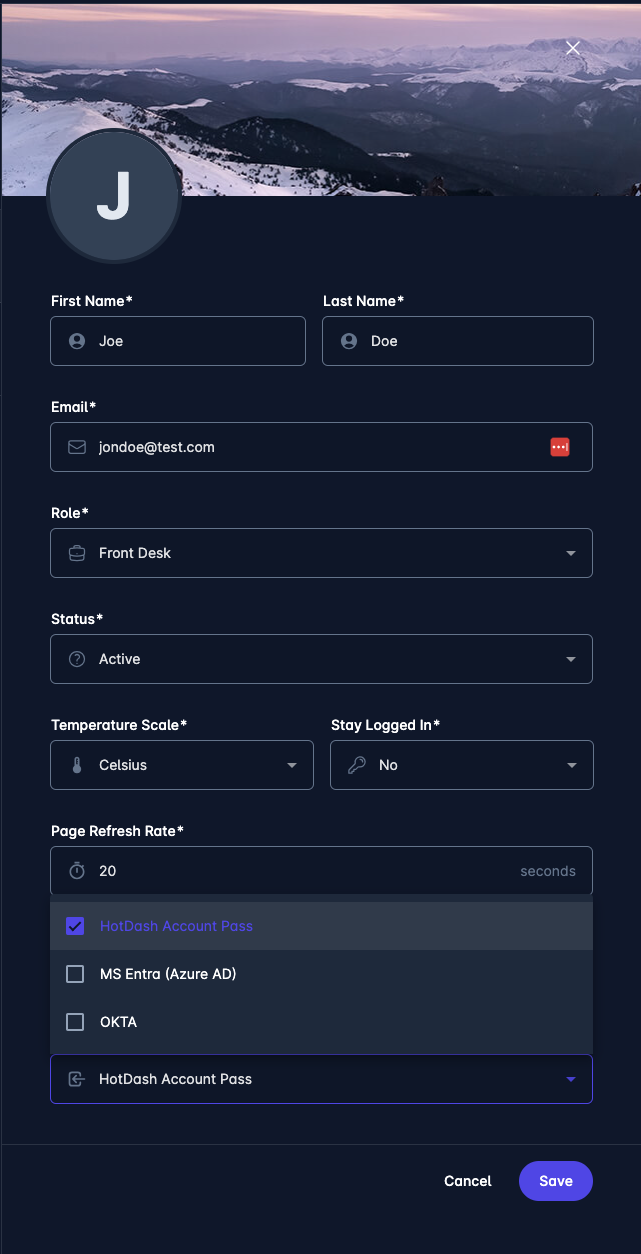
Each user must have "Allowed Sign-In Methods" defined for his/her user account, this allows for better flexibility as some users can use more than one method to sign in. List of allowed sign-in methods must be firstly configured by HotDash support staff for each hotel/site. Let us know on support@hotdash.net if you would like to configure alternative sign-in method as only method allowed by default is "HotDash Account Pass".
(Administration -> Users -> Add/Edit)
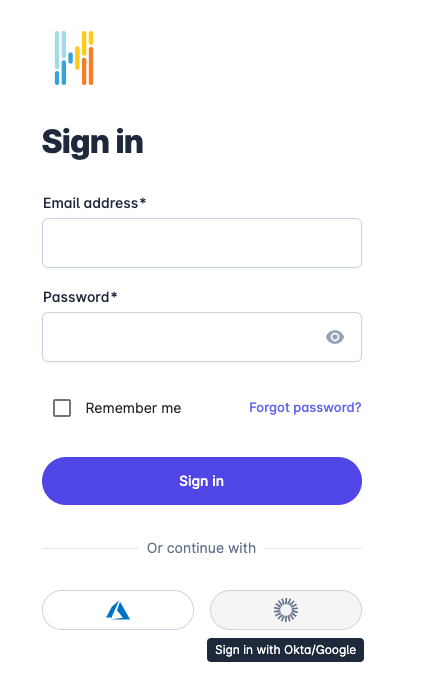
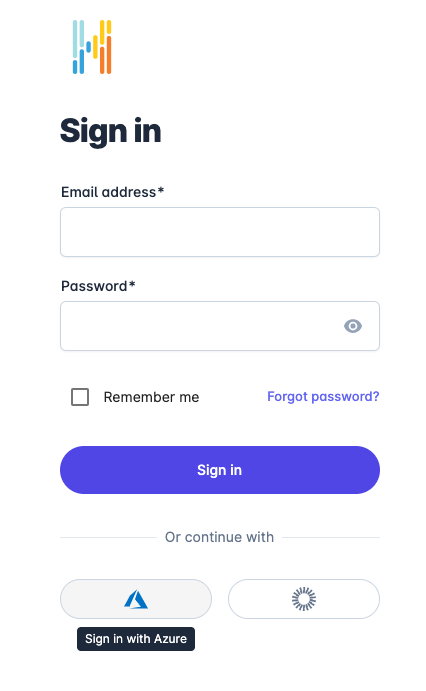
- Go to the HotDash website at https://hotdash.net.
- Select the SSO method you would like to use.
|
|
|
⚠️ Your session expires automatically after 60 minutes. When the session expires, a new log in is obligatory. The system remembers on which page the user has been when the session was closed and will automatically guide the user to that page.
To see more details visit single sing-on guide. Single Sign-on.
¶ How to Change your password
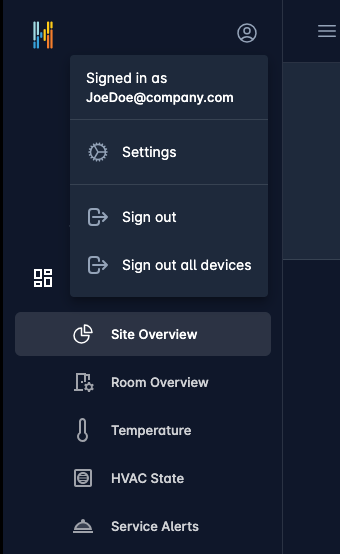
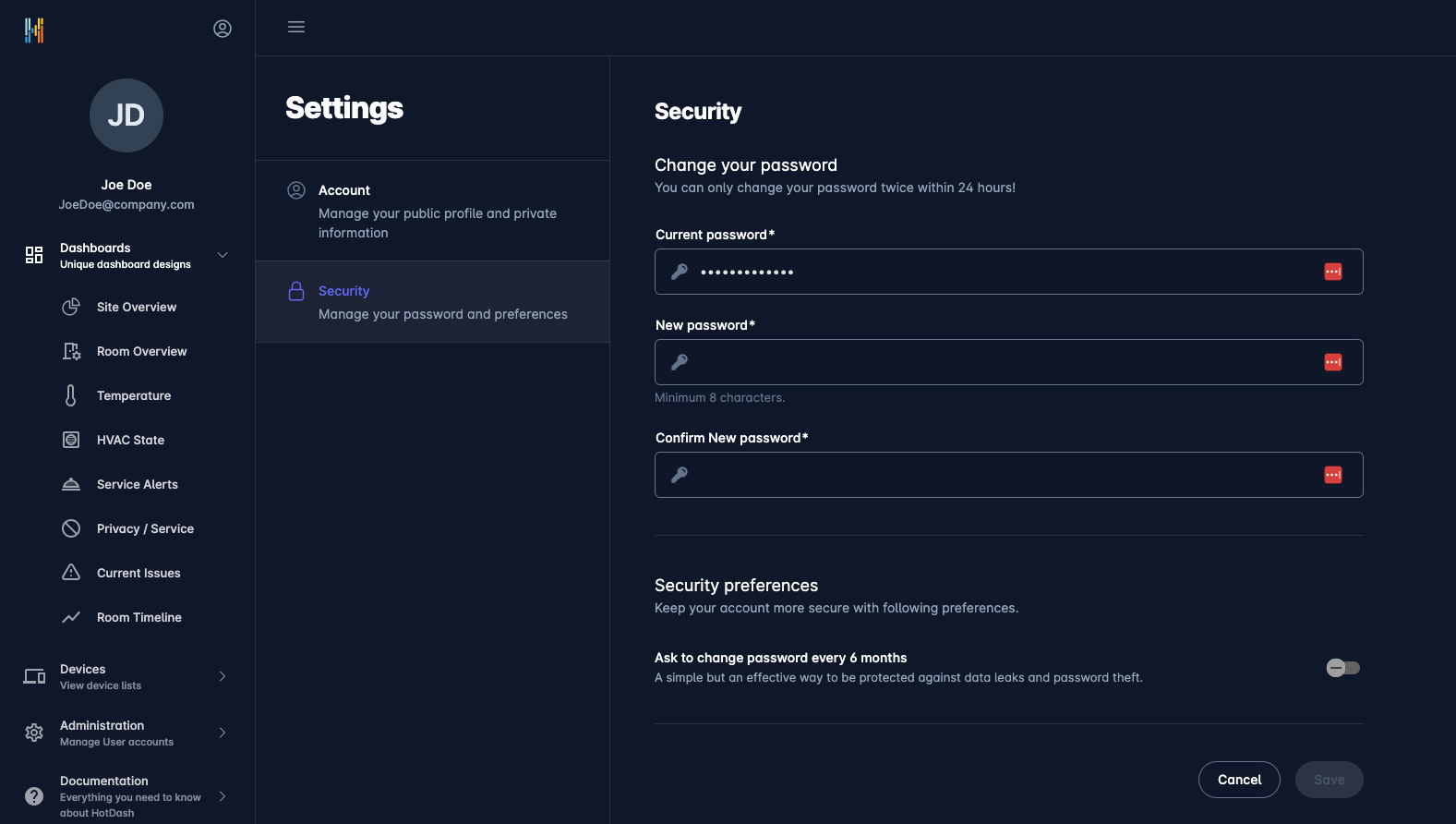
- Open your HotDash Account.
- Click the user icon
 in the toolbar and select Settings from the dropdown menu.
 - Select the Security tab.
- Enter your current and new password. Click Save.
|
|
¶ How to Reset your password
- Click Forgot Password? on the Sign in page (Fig 1).
- Follow the steps to recover your account. An email will be sent to you. If you don’t get an email, check your Spam or Bulk Mail folders.
- Choose a password that you haven't already used with this account.
.png)
|
¶ How to Change Site (Multiple Sites Access)
You can easily change site (property) by clicking on site switch in the top right corner of the screen. See below:

¶ User Settings
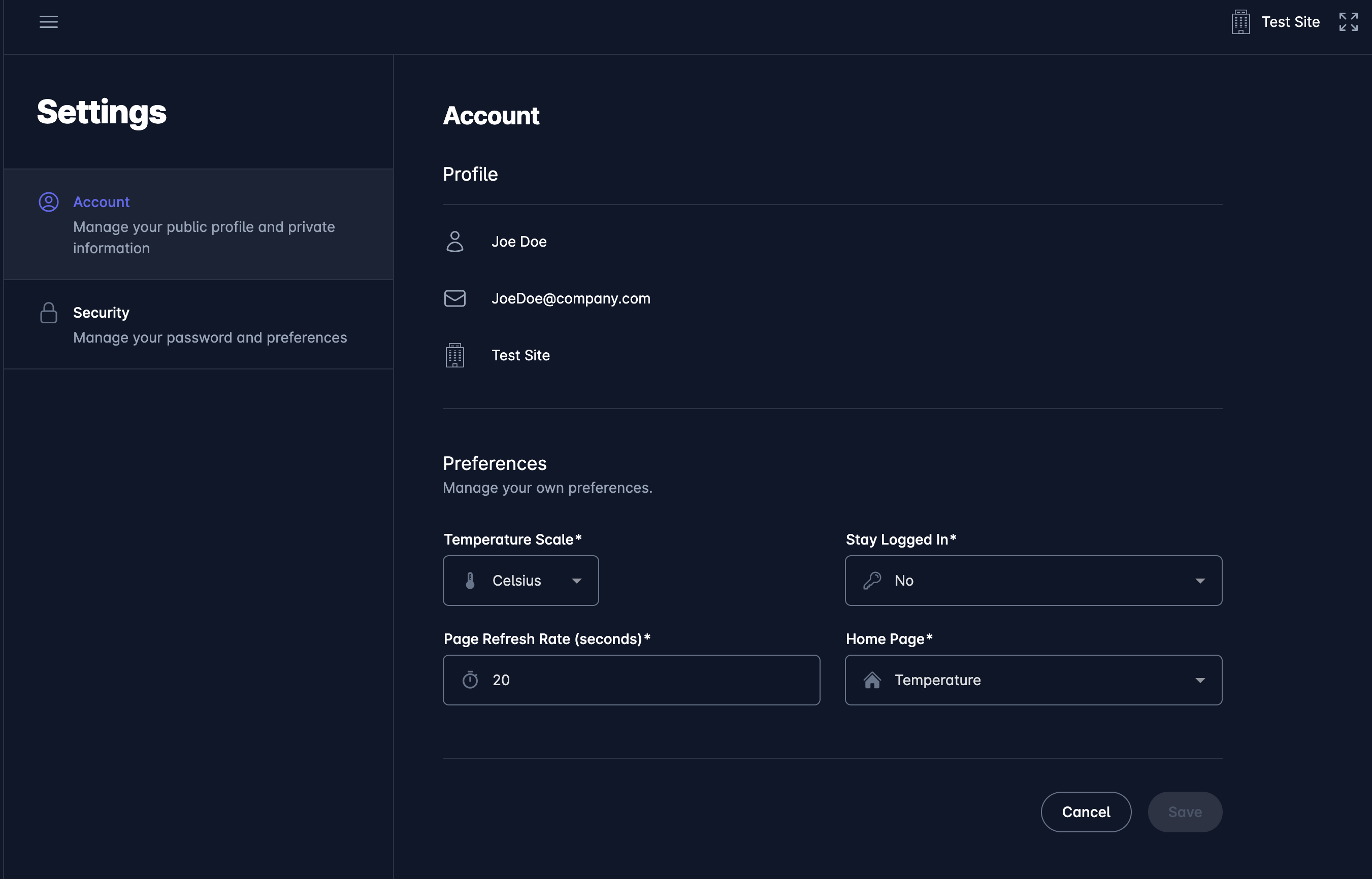
You can customize certain preferences in the UI, such as your preferred Temperature Scale, your Home Page, and the page Refresh rate. To change your settings, click the user icon and select Settings from the dropdown menu (Fig 1). Click the Account Tab to view customization options (Fig 2).
¶ Temperature Scale
You can change the scale to Celsius or Fahrenheit according to your preference.
¶ Stay Logged In
You can extend your log in session expiry by choosing this option.
¶ Page Refresh Rate
There are pages that refresh the data depending on current settings. To change the default setting, enter a different refresh interval.
¶ Home Page
After logging in, you are directed to your current home page. To change the home page, select a page from the dropdown list.
|
|
|
¶ Theme Settings
HotDash comes with a variety of different Theme Layouts which you can see and try from the configuration sidebar. Click the Theme Icon  to change the Theme, Scheme, and Layout.
To save your changes, click the Save button.
¶ Page Help
A number of HotDash views have help information. Click on the Help button  to view a brief description for the page.
¶ Dashboards
Dashboard page views give a quick overview of the site rooms and device states.
¶ Room Overview
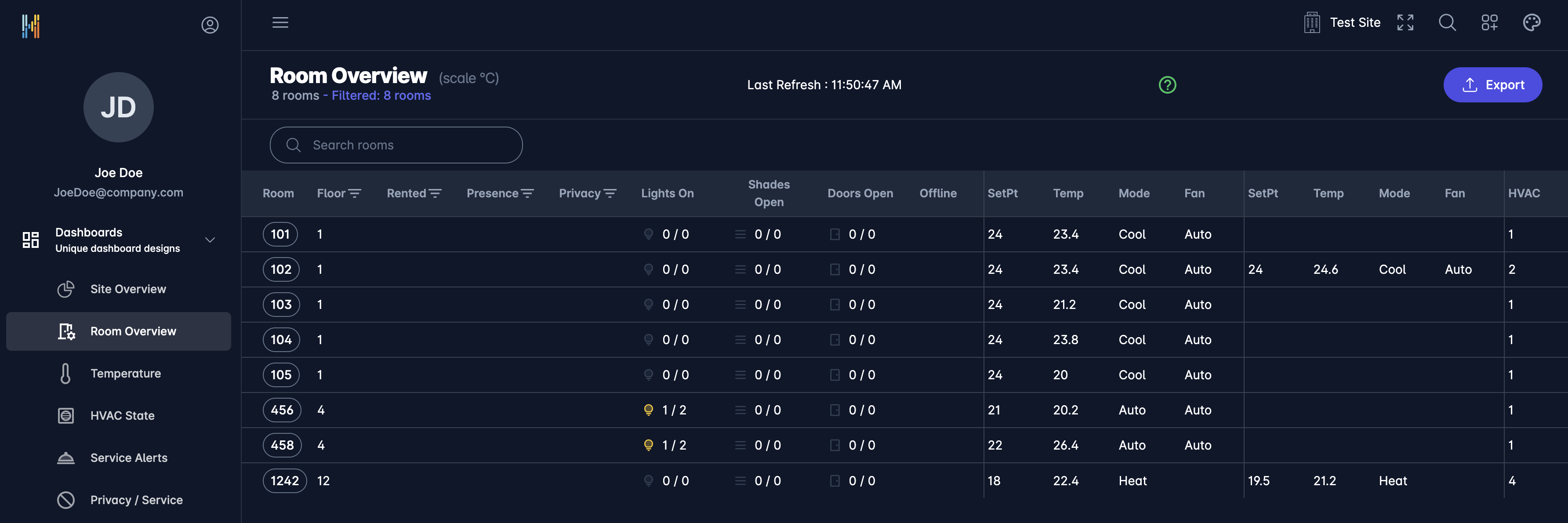
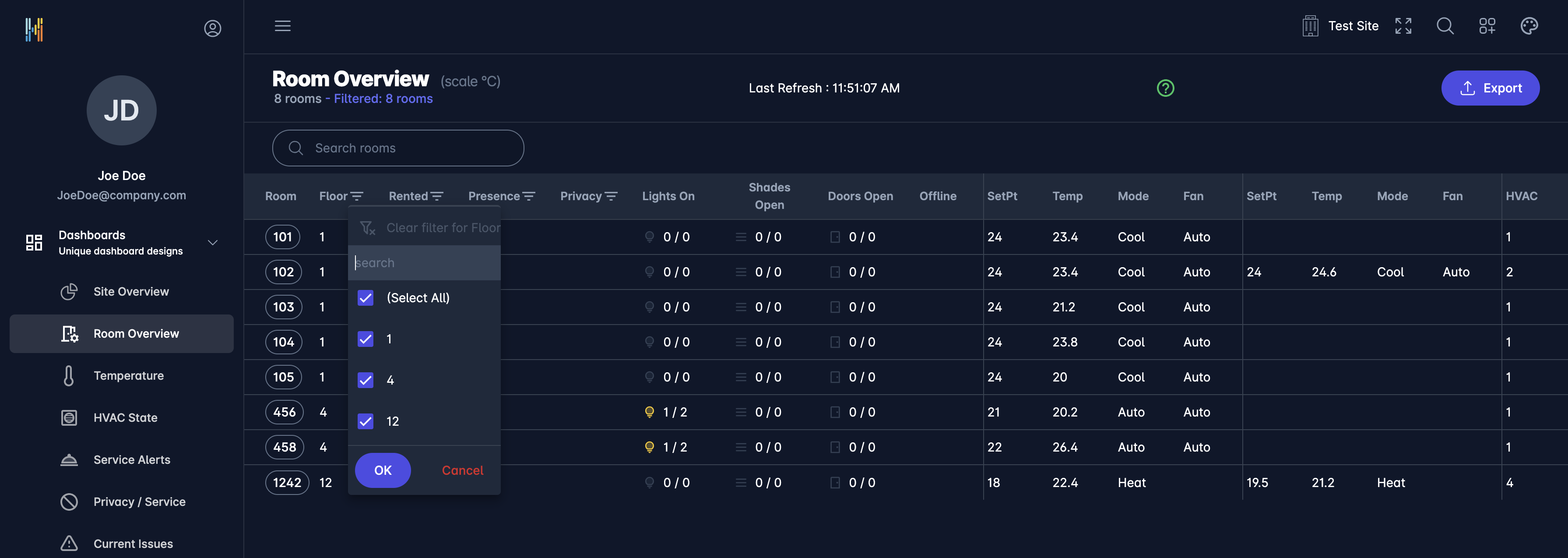
This page gives an overview for the state of a site’s rooms.Advanced filtering can be used for selected columns by clicking on filter icon.
|
|
The following links are available that direct you to a more detailed page view:
| Click | Description |
|---|---|
| Room | to go to Room View |
| Lights On | to show Lighting Devices |
| Shades Open | to show Shade Devices |
| Doors Open | to show Door Devices |
| Offline | to show Offline Devices |
| Set Pt | to go to Thermostat View |
A maximum of 2 Thermostat settings are displayed per Room. The HVAC column indicates the HVAC count for the room.
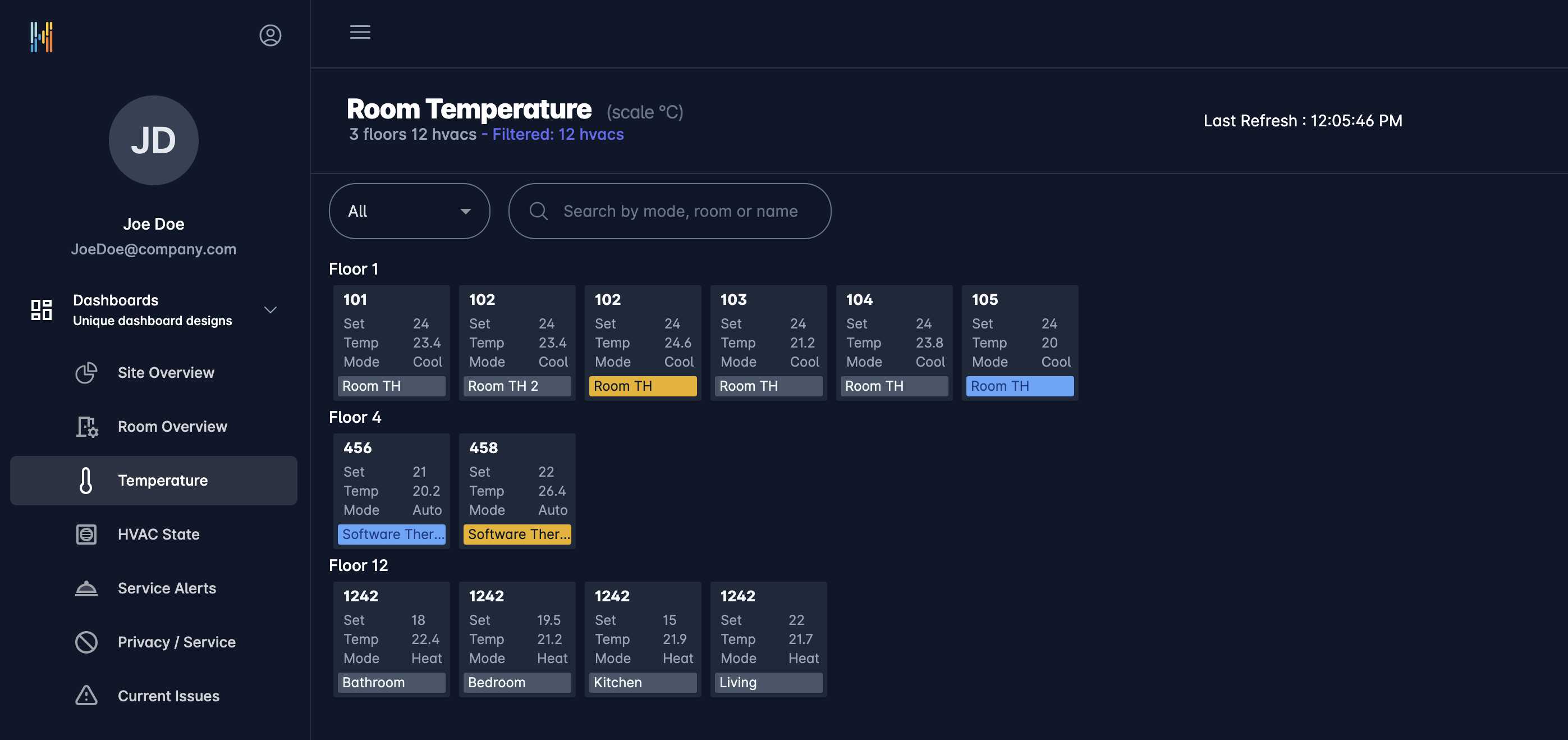
¶ Temperature
This dashboard view shows an overview of all current Thermostat settings.
|
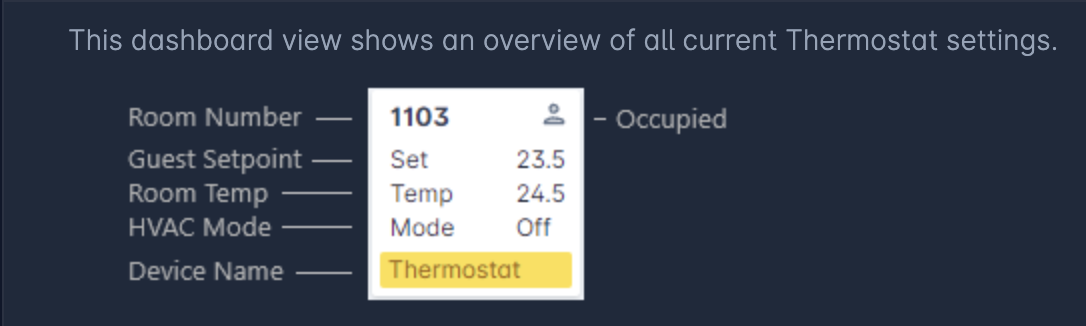
The Temperature card has the following attributes:
|
- Click Room Number to go to Room View
- Click Device Name to go to Thermostat View
- Room Number color indicates Rental state: Theme Color = Rented (e.g., Room 601 is Rented, Room 602 is not Rented)
- Device Name background color indicates Room Temperature:
- Occupied:

Fahrenheit:
Cold < 64.4 Cool 64.4 to 69.7 Ideal 69.8 to 75.1 Warm 75.2 to 82.4 Hot > 82.4 no Temp
Celsius:
Cold < 18 Cool 18 to 20.9 Ideal 21 to 23.9 Warm 24 to 27.9 Hot > 27.9 no Temp
¶ HVAC State
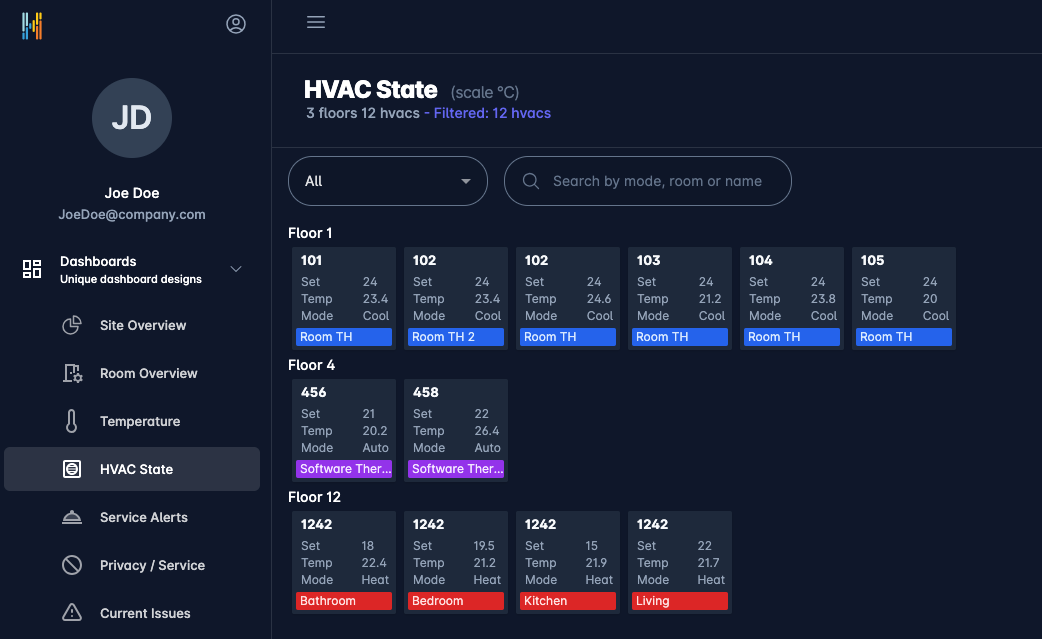
This dashboard view shows an overview of all current HVAC settings.
|
The HVAC card has the following attributes:
|
|
- Click Room Number to go to Room View
- Click Device Name to go to Thermostat View
- Room Number color indicates rental state: Theme Color = Rented (e.g., Room 1211 is not Rented)
- Occupied indicator:
- Device Name background indicates HVAC Mode: Off Auto Cool Heat n/a
¶ Privacy / Service
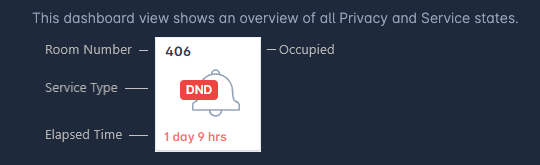
This dashboard view provides an overview of all Privacy and Service states.
The card has the following attributes:
|
- Click Room Number to go to Room View
- Click Elapsed Time to go to User Interface View
- Room Number color indicates rental state: Theme Color = Rented (e.g., Room 505 is Rented)
- Service Type labels:
HSKHSKDNDDNDTRAYTRAY
- Overdue services show Elapsed Time in red text
- Occupied indicator:
¶ Service Alerts
This dashboard view shows current Service requests.
The card has the following attributes:

|
- Click Room Number to go to Room View
- Click Elapsed Time to go to User Interface View
- Room Number color indicates rental state: Theme Color = Rented (e.g., Room 2502 is not Rented)
- Service Type labels:
HSKHSKTRAYTRAY
- Overdue services have Elapsed Time shown in red text
- Occupied indicator:
¶ Current Issues
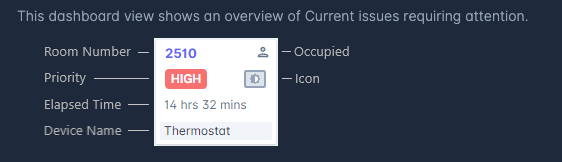
This dashboard view highlights active issues needing attention.
The card has the following attributes:
|
- Click Room Number to go to Room View
- Click Device Name to go to Device View
- Room Number color indicates rental state: Theme Color = Rented (e.g., Room 2510 is Rented)
- Priority labels:
HIGHHIGHMEDIUMMEDIUMLOWLOW
- Occupied indicator:
¶ Filters
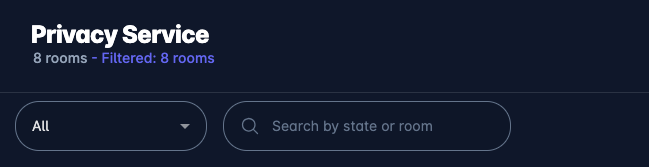
Many HotDash views include filter controls. You can use dropdown filters or enter search text to refine the list.
|
¶ Devices
Overview of offline and unidentified devices:
¶ Offline Devices
This view lists all offline devices requiring attention:
- Click Room Number to go to Room View
- Click Device Name to go to Device View
- Priority labels:
HIGHHIGHMEDIUMMEDIUMLOWLOW
¶ Unidentified Devices
Lists all unidentified devices:
- Click Room Number to go to Room View
- Click Device Name to go to Device View
¶ Current State
Displays device variable states based on user‑selected parameters:
- Select device models
- Select variables to include
- Choose time zone
- Format: Summary (column) or Detail (row)
- Click Run Request

|
|
¶ Device View
Includes four tabs:
- Home
- History
- Properties
- Apply To (if applicable)
💡 Click the Room number at the top to return to the Room View
¶ Home Tab
¶ Device Information

|
| Card Section | Description |
|---|---|
| 1 Left | Image of the device |
| 1 Right | Current state. Identify:  Disconnect: Disconnect:  |
| 2 | Device name, model, location, MAC. Use Read More for additional details |
Button actions require applicable permissions:
- Identify Device → shows pop‑up with instructions
- Disconnect Device → triggers disconnection request
¶ Device Chart
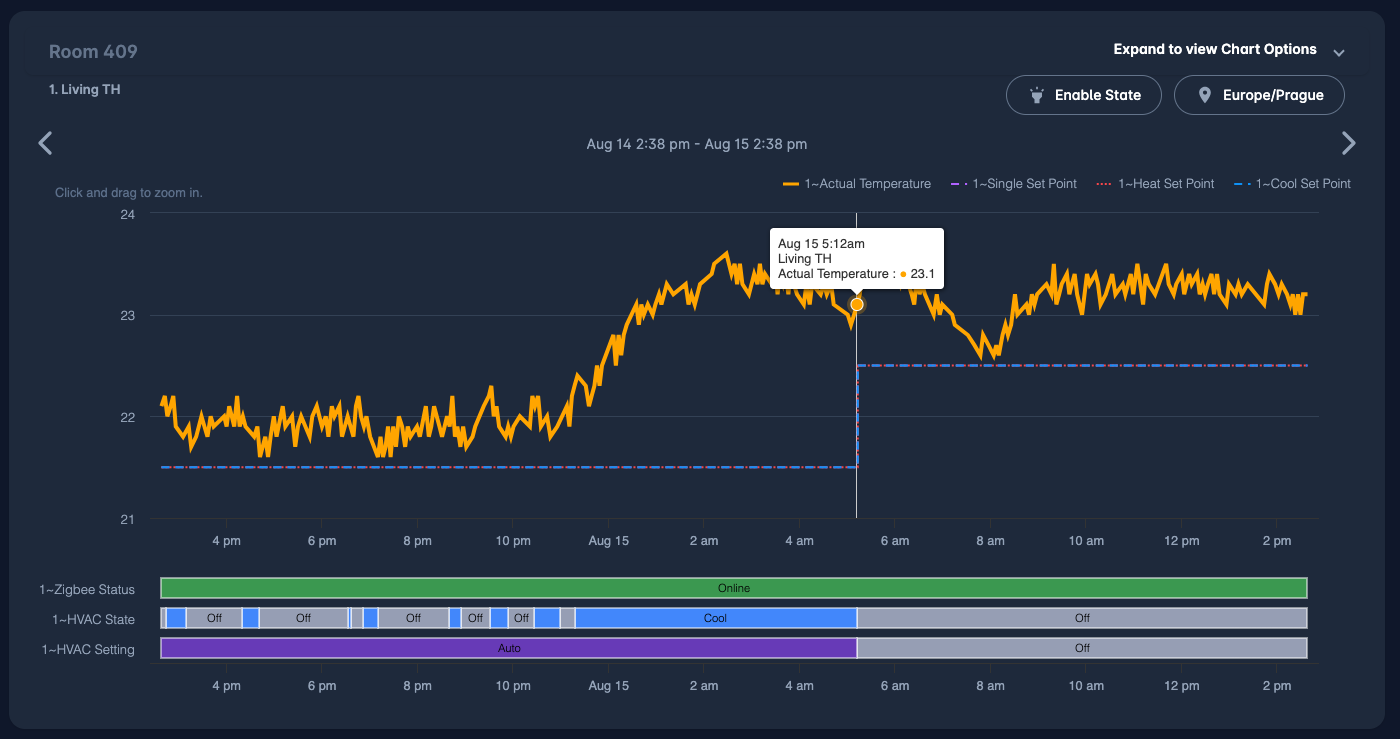
Customize or view default charts:
Add a new Chart
- Click Expand to view Chart Options v (Fig 1).
- Click the vertical dots icon and select Add New Chart (Fig 2 + 4).
- Enter Chart Name and Description and click Add.
- The new chart should now appear in the Select a Chart dropdown list (Fig 2).
- See How to Change a Chart for further instructions.
Change a Chart
- Click Expand to view Chart Options v (Fig 1).
- Select chart from Select a Chart dropdown list (Fig 2).
- Select devices you want to include in the chart from the Devices dropdown list (Fig 2).
- Available device variables will appear for selection {Fig 3).
- Click the vertical dots icon and select Change Current Chart (Fig 2 + 4).
- Apply changes to Chart Name and/or Description, if required, and click Save.
Change a Chart Name
- Click Expand to view Chart Options v (Fig 1).
- Select chart from Select a Chart dropdown list (Fig 2).
- Click the vertical dots icon and select Change Current Chart (Fig 2 + 4).
- Apply changes to Chart Name and/or Description and click Save.
Delete a Chart
- Deletions are restricted to User custom charts, default charts cannot be removed.
- Click Expand to view Chart Options v (Fig 1).
- Select chart from Select a Chart dropdown list (Fig 2).
- Click the vertical dots icon and select Delete Current Chart (Fig 2 + 4).
- A confirmation popup will appear. Click Delete to continue, or Cancel to abort delete.
|

|
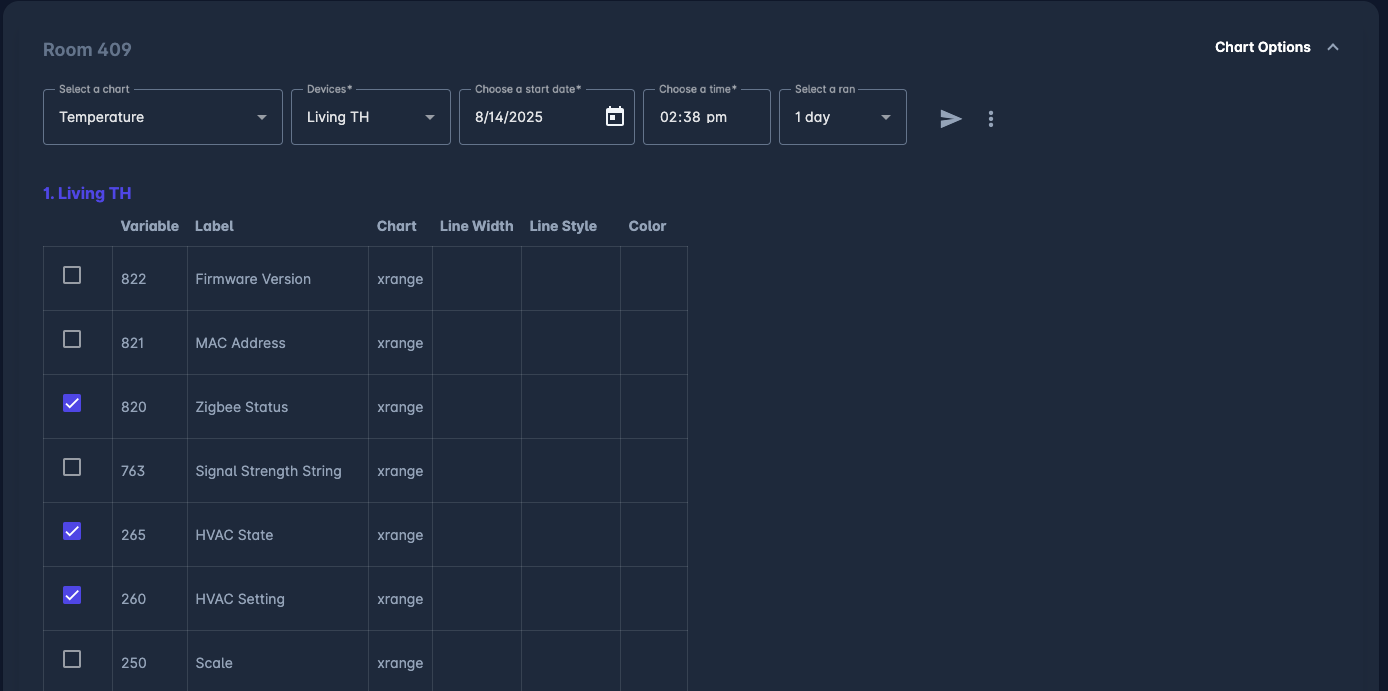
|
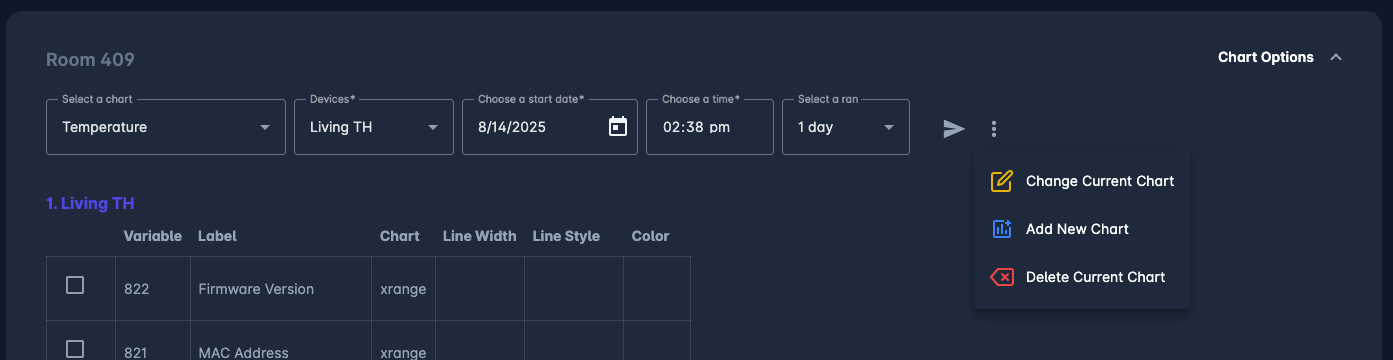
|
¶ History Tab
Shows historical device variable data over a date range. Select variables and dates then run the report.
¶ Properties Tab
Displays all settings and values for the current device.
¶ Apply To Tab
Use this tab to apply current device settings to other devices:
To apply settings:
- Choose Apply To list (room tags)
- Choose if you wish to include rooms which are currently checked-in
- Devices marked Pending (🔴)
- Uncheck any device you wish to exclude
- Click Submit
💡 See Room Tags section for setting up room tag groups
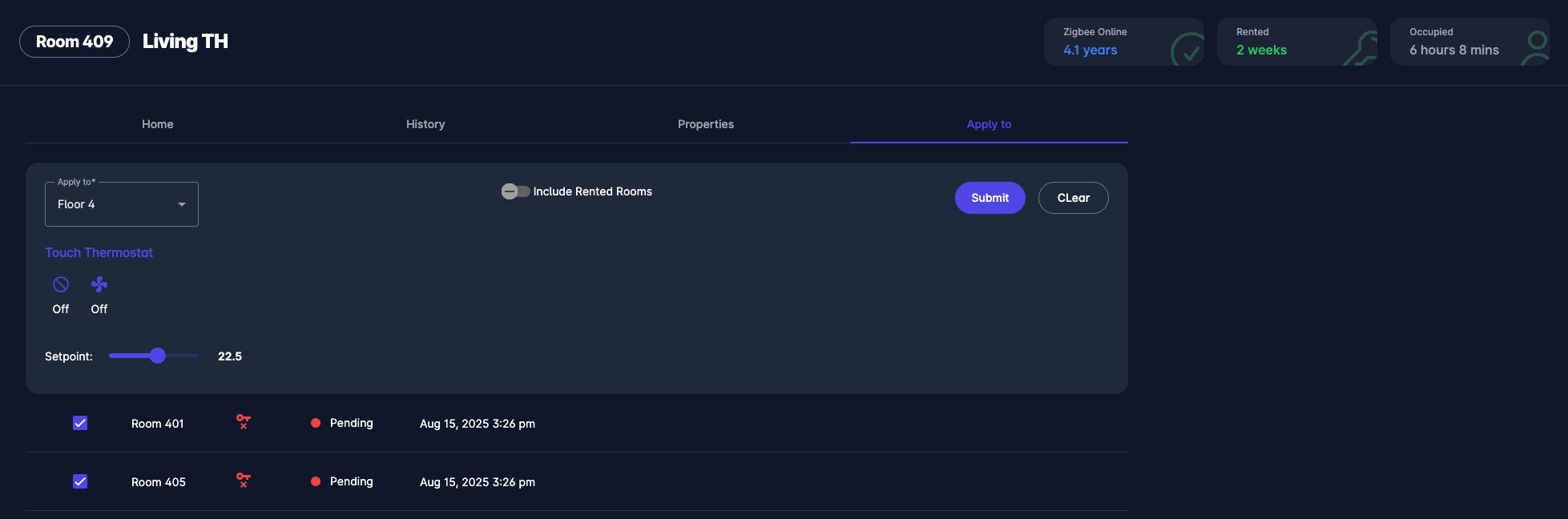
|
¶ Room View
Displays devices in a room, grouped by type.
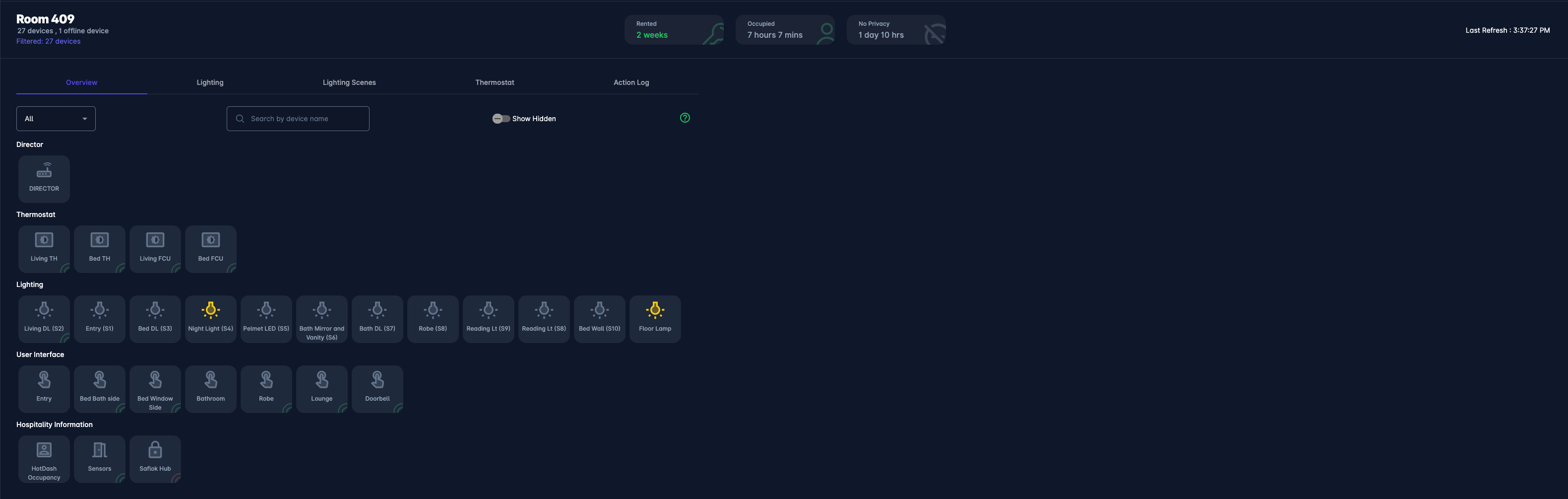
|
Card Details:
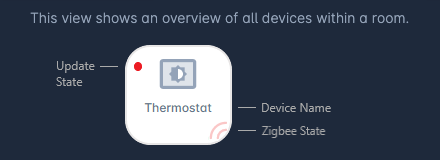
|
- Click any card to go to Device View
- Zigbee status: Online or Offline indicated by color
- Update status:
- 🔴 Pending
- 🔵 Submitted
¶ Administration
Admin Views require special permissions to do specific tasks. Tasks include adding and editing site users.
¶ Users
User accounts are created by site administrators. Use this view to add, edit, or inactivate users.
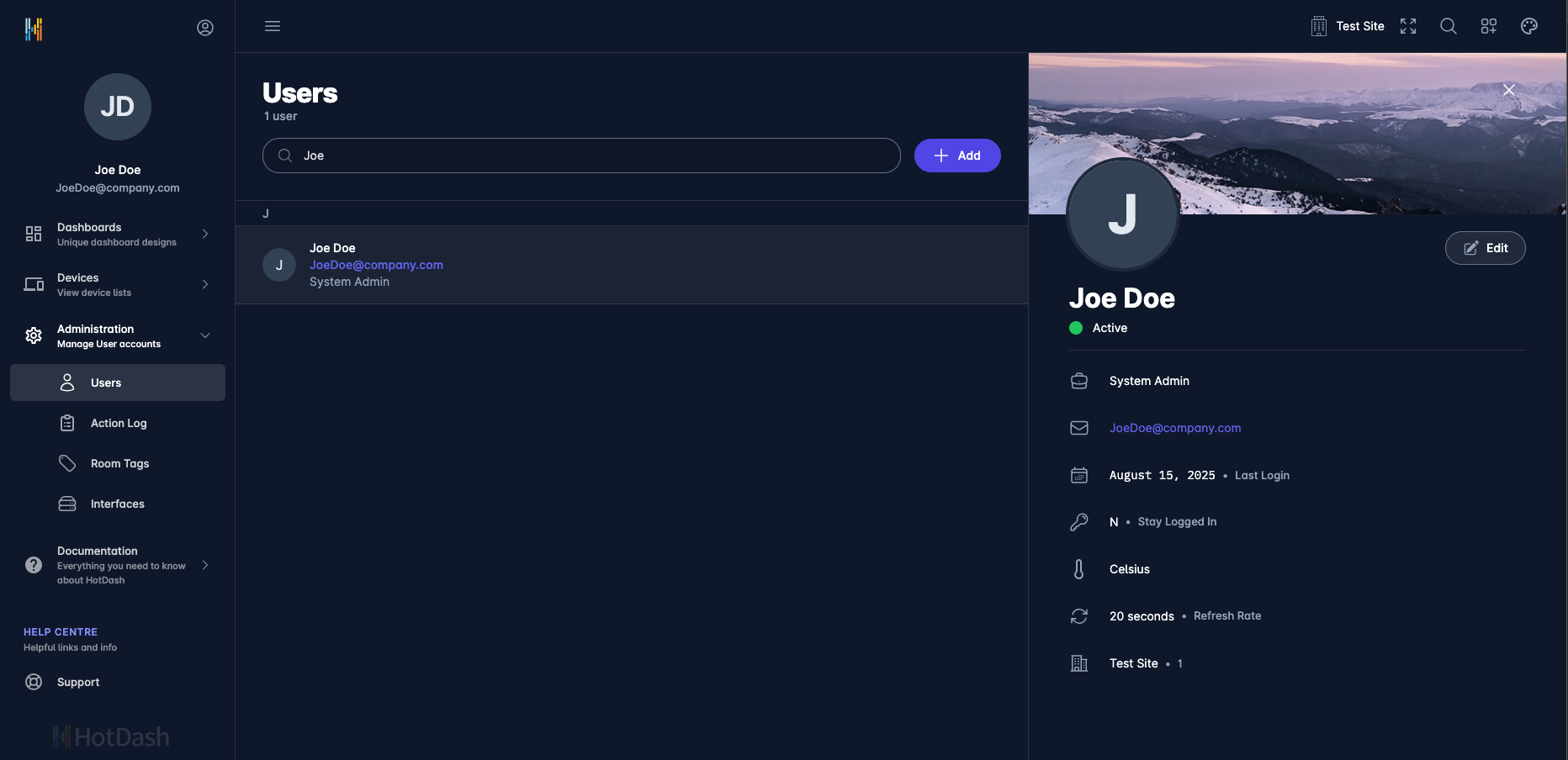
|
¶ How to Create a new User
- Click the Add button.
- Enter details for the new user.
- Click Save to add the new User.
¶ How to Change User info
- Select the row from the Users List (the user details will appear as read-only).
- Click Edit to switch to edit mode.
- Enter changes and click Save.
Fields available for editing by Administrators:
| Name | Description |
|---|---|
| First Name | User's first name |
| Last Name | User's last name |
| User email address, used for logging in | |
| Role | Defines views the user will be given access to |
| Status | Active or Inactive (Inactive blocks user log in) |
| Temperature Scale | User preferred scale, Celsius or Fahrenheit |
| Stay Logged In | Session expiry is set to 1 hour, to extend choose Yes |
| Page Refresh Rate | Some views refresh at a set interval. Minimum is 5 seconds. |
| Site Access | Select the site(s) the user will be permitted to access. |
| Allowed Sign-In Methods | Each user must have "Allowed Sign-In Methods" defined. Contact support@hotdash.net to configure alternatives. Default: "HotDash Account Pass". |
¶ User Roles and Permissions
View Permissions:
| System Admin | Training | Maintenance | Duty Manager | Front Desk | Housekeeping | Installer | |
|---|---|---|---|---|---|---|---|
| Dashboards | |||||||
| Site Overview | ✅ | ✅ | ✅ | ✅ | ✅ | ❌ | ✅ |
| Room Overview | ✅ | ✅ | ✅ | ✅ | ✅ | ❌ | ✅ |
| Temperature | ✅ | ✅ | ✅ | ✅ | ✅ | ❌ | ✅ |
| HVAC State | ✅ | ✅ | ✅ | ✅ | ✅ | ❌ | ✅ |
| Service Alerts | ✅ | ✅ | ✅ | ✅ | ✅ | ✅ | ✅ |
| Privacy / Service | ✅ | ✅ | ✅ | ✅ | ✅ | ✅ | ✅ |
| Current Issues | ✅ | ✅ | ✅ | ✅ | ❌ | ❌ | ✅ |
| Room Timeline | ✅ | ✅ | ✅ | ✅ | ✅ | ❌ | ✅ |
| Devices | |||||||
| Offline | ✅ | ✅ | ✅ | ❌ | ❌ | ❌ | ✅ |
| Unidentified | ✅ | ✅ | ✅ | ❌ | ❌ | ❌ | ✅ |
| Current State | ✅ | ✅ | ✅ | ❌ | ❌ | ❌ | ✅ |
| Administration | |||||||
| Users | ✅ | ❌ | ❌ | ❌ | ❌ | ❌ | ✅ |
| Action Log | ✅ | ✅ | ✅ | ❌ | ❌ | ❌ | ✅ |
| Room Tags | ✅ | ✅ | ✅ | ❌ | ✅ | ❌ | ✅ |
| Drivers | |||||||
| Manage | ❌ | ❌ | ❌ | ❌ | ❌ | ❌ | ✅ |
| Update | ❌ | ❌ | ❌ | ❌ | ❌ | ❌ | ✅ |
| Versions | ❌ | ❌ | ❌ | ❌ | ❌ | ❌ | ✅ |
| Documentation | |||||||
| Changelog | ✅ | ✅ | ✅ | ✅ | ✅ | ✅ | ✅ |
| Guides | ✅ | ✅ | ✅ | ✅ | ✅ | ✅ | ✅ |
| Help Centre | |||||||
| Support | ✅ | ✅ | ✅ | ✅ | ✅ | ✅ | ✅ |
Control Permissions:
| Action | System Admin | Training | Maintenance | Duty Manager | Front Desk | Housekeeping |
|---|---|---|---|---|---|---|
| Execute Command on Device | All Device Types | ❌ | All Device Types | All Device Types | All Device Types | Only DND/HSK |
| Execute Command on Multiple Devices ("Apply To") | All Device Types | ❌ | All Device Types | All Device Types | All Device Types | ❌ |
| Identify / Disconnect | All Device Types | ❌ | All Device Types | ❌ | ❌ | ❌ |
| Properties | R/W | ❌ | R/W | ❌ | ❌ | ❌ |
¶ Room Tags
Room Tags allow you to organize rooms into groups. They are currently used for 2-way communication. See Device View - Apply To for more details.
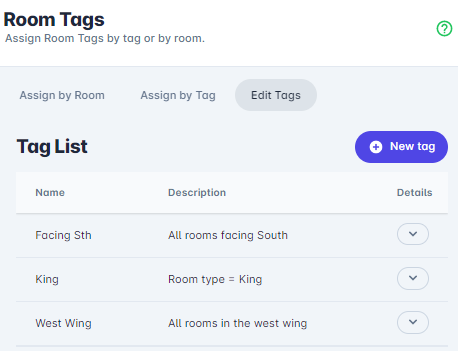
|
¶ How to Add a new Tag
- Select the Edit Tags Tab.
- Click the New tag button.
- Enter Name and Description and click Save.
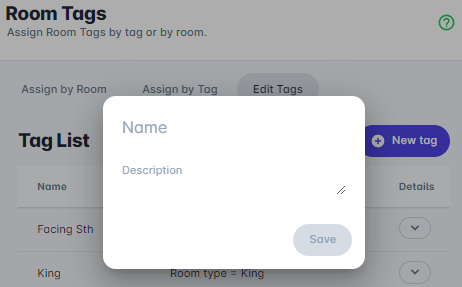
|
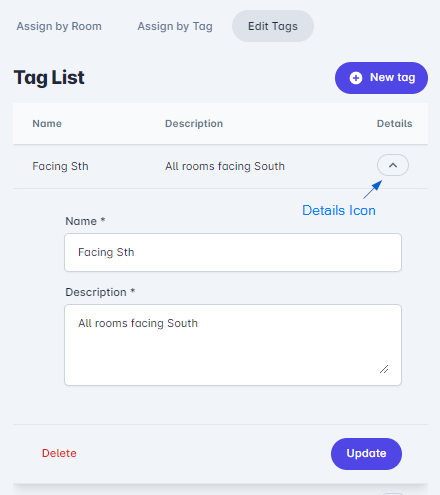
¶ How to Edit a Tag
- Select the Edit Tags Tab.
- Click the Details icon (v) to view tag details.
- Enter changes and click Update.
|
¶ How to Delete a Tag
- Select the Edit Tags Tab.
- Click the Details icon to view the tag row details.
- Click Delete.
¶ How to Assign Tags to Rooms
You can assign tags to rooms using two methods:
- Assign by Room
- Assign by Tag
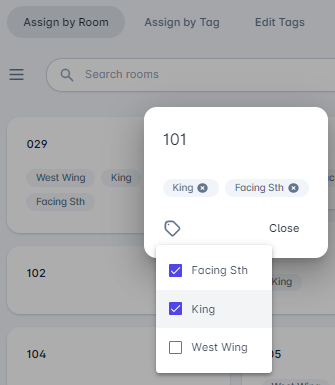
¶ Assign by Room
|
- Click the Assign by Room Tab.
- Select the appropriate Filter on the left panel (Show All to view all rooms).
- Click the Room card you want to amend. A popup will show current tags assigned.
- Click the Tag icon to view the dropdown selection.
- Select a tag to add, deselect to remove.
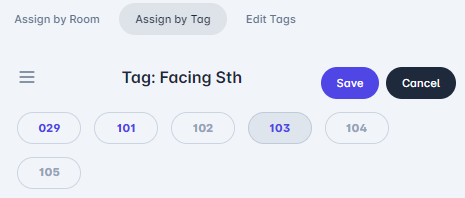
¶ Assign by Tag
|
- Click the Assign by Tag Tab.
- Select the appropriate tag Filter (Show All is not available).
- Room Number color indicates assigned state: Theme Color = Assigned.
- Select/Deselect rooms to add/remove the tag.
- Click Save to record changes.